Woman on laptop at home dressed comfortably

Online & Mobile Banking

Introducing a Fresh Digital Banking Experience

SouthState Online and Mobile Banking has a new look — available May 19.


SouthState Online and Mobile Banking is getting a refreshed, modern design that makes managing your accounts easier than ever. With a cleaner layout and intuitive tools, everything you need is easier to find and simpler to use.


Learn More About the New Design

Explore the New Experience

South State Bank Video Play Button

What's New

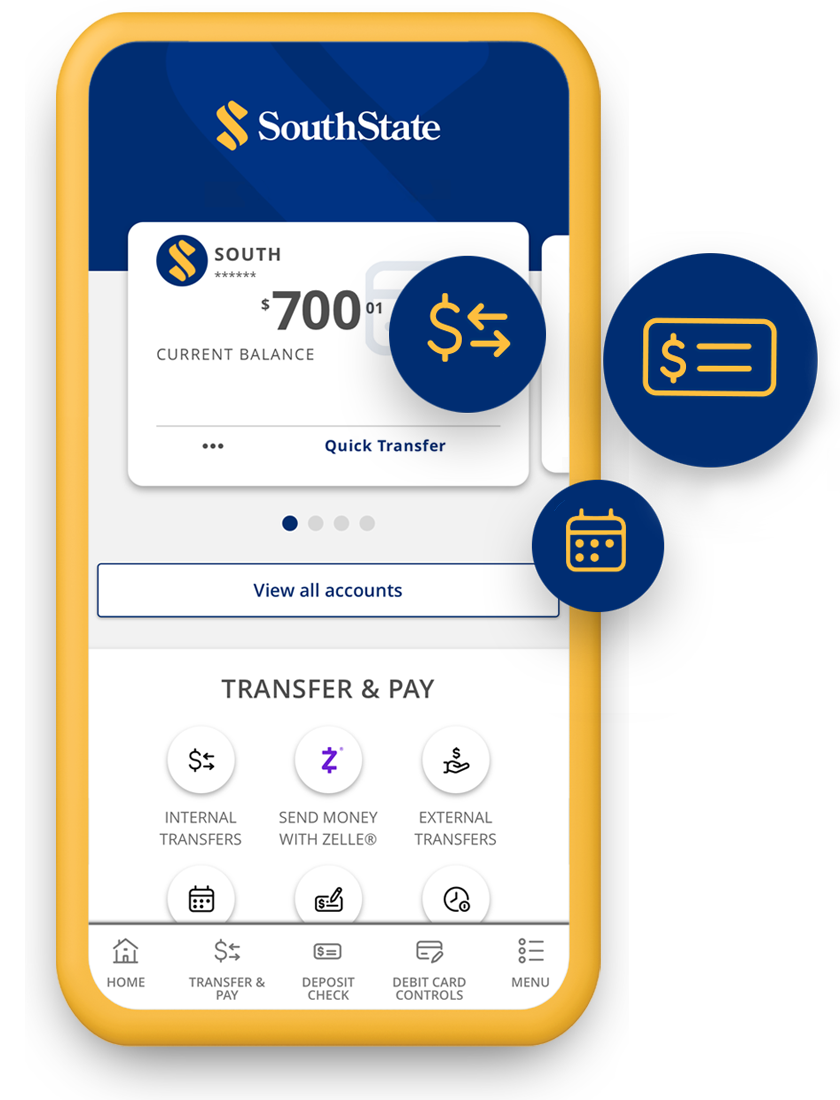
Cleaner, Modern Design

Enjoy an updated look that makes it easier to access the features and services you use most.
Simplified Navigation

Home-screen access to popular features and services, and the addition of smart search, make it easier to find what you need with fewer clicks and less scrolling.
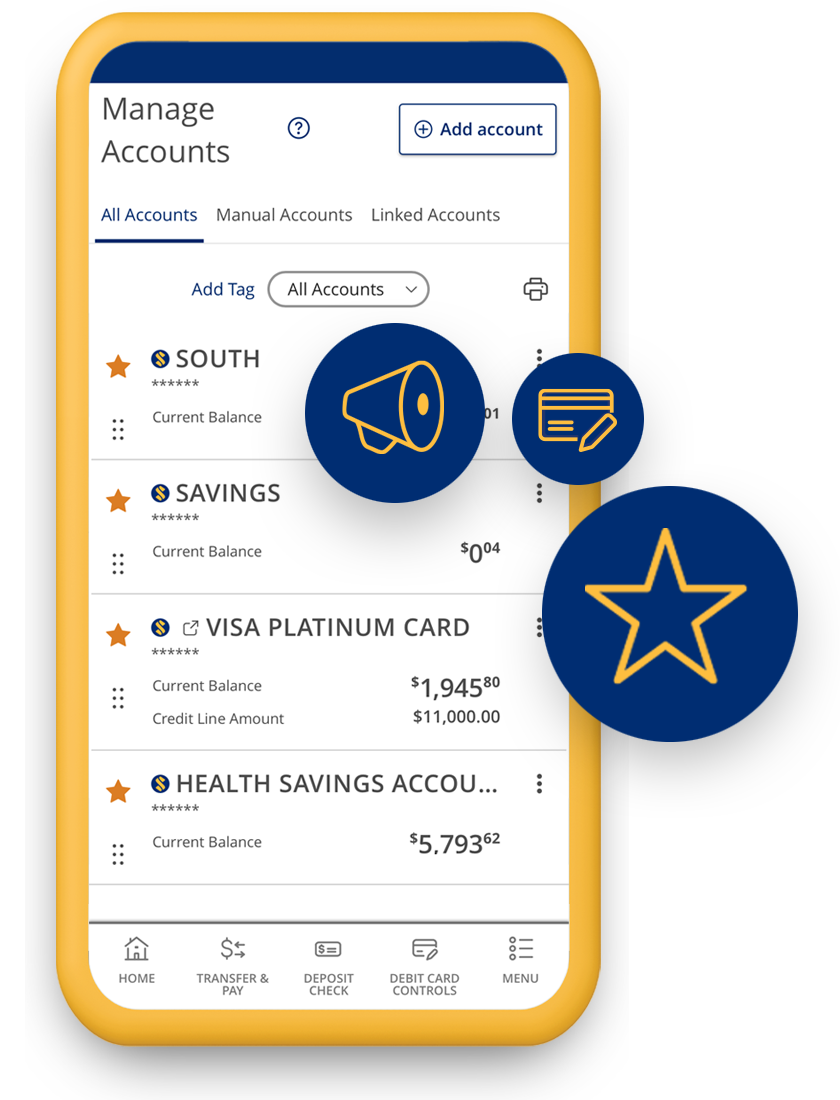
Customizable Account View

Choose up to 10 favorite accounts - including linked non-SouthState accounts - to display on your home screen for quick access.
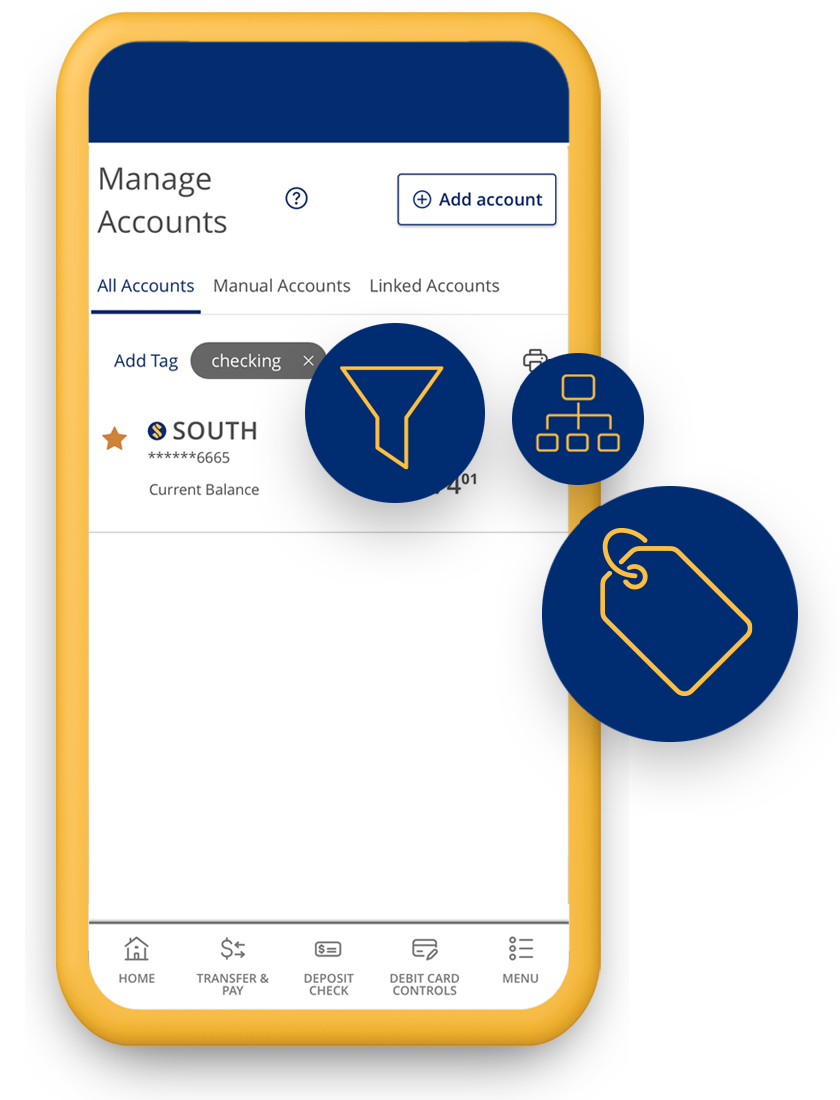
Tagging

Stay organized by using tags in the All Accounts view to categorize and filter your accounts.

Cleaner, Modern Design

Enjoy an updated look that makes it easier to access the features and services you use most.

Simplified Navigation

Home-screen access to popular features and services, and the addition of smart search, make it easier to find what you need with fewer clicks and less scrolling.

Customizable Account View

Choose up to 10 favorite accounts - including linked non-SouthState accounts - to display on your home screen for quick access.

Tagging

Stay organized by using tags in the All Accounts view to categorize and filter your accounts.


Important Things to Know

 
  • Available May 19. Login as you normally do to experience the new Online and Mobile Banking design starting Tuesday, May 19.

  • More than 10 accounts? You will be prompted to select, or favorite, the 10 accounts you want to view on your home screen when logging in for the first time on or after May 19. When viewing all of your accounts, select the star next to the accounts you want to display on your home screen. 

  • Accounts no longer hidden. You may see accounts on your home screen that were previously hidden. To remove an account from your home screen, select “view all accounts” and unfavorite the account by clicking the star next to it. 

  • Account grouping. A new Tagging feature will allow you to categorize and group accounts under assigned Tag names and filter by Tags in the All Accounts view. (not available on the home screen)

  • Open a new account? Be sure to favorite a recently opened account if you wish to view it on your home screen. 

Helpful Tips

Helpful Tips

Icon for Helpful Tips
 
  • Manage and View All Accounts. Click View all accounts under your accounts on the home screen or Manage Accounts under Services & Settings to favorite accounts, change the order of your accounts, view manually added and linked non-SouthState accounts, and to create Tags for accounts.
  • Favoriting Accounts. You can favorite or unfavorite an account anytime to customize your account viewing experience on your home screen.
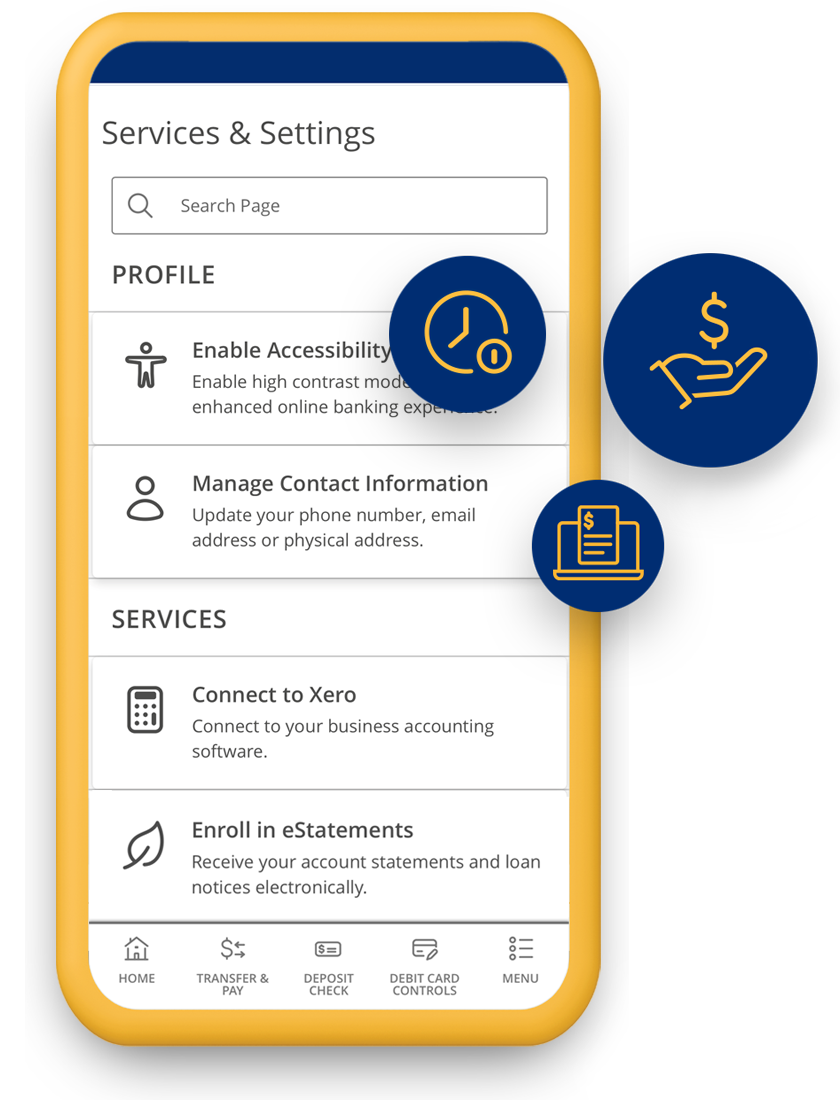
  • Smart Search. A search bar is now featured at the top of the Services & Settings and Transfer & Pay screens to help you easily find what you’re looking for.
  • Financial Tools. Enrolled in Financial Tools? Click the three dots at the bottom of the Spending tile to see your budget, trends, cash flow, net worth and debts.

Have Questions?

The new design will be available on Tuesday, May 19.

No. No action is required of you.

No. There is no change to how you log in to Online or Mobile Banking. On or after May 19, you will log in as you normally do and will be presented with the new design.

No. You will not need to update the mobile app to see the new design.

No. The refreshed Online and Mobile Banking experience will automatically replace the current design starting May 19. All customers will move to the new design when they log in, and no action is required. The update is designed to make everyday banking easier with simpler navigation, a cleaner layout, and more intuitive tools—while keeping the same login process and features you already use.

The home screen is designed to keep your most important accounts front and center. You can still view all of your accounts by clicking View all accounts underneath your accounts on the home screen or navigate to Services & Settings and select Manage Accounts.

To see all of your accounts, click View all accounts underneath your accounts on the home screen or navigate to Services & Settings and select Manage Accounts.

To change the accounts you see on your home screen:
  • Click View all accounts underneath your accounts on the home screen or navigate to Services & Settings and select Manage Accounts.
  • On the All Accounts tab, favorite the accounts you wish to see on your home screen by selecting the star next to each account. The star will turn gold when selected.
  • To unfavorite an account and remove it from your home screen, select the gold star next to an account. (The star will turn white, which will hide the account from your home screen.)

Although you will be unable to group accounts on the home screen, you can take advantage of the new Tagging feature to categorize and filter your accounts. To create Tags, click View all accounts underneath your accounts on the home screen or navigate to Services & Settings and select Manage Accounts.

This feature allows you to categorize multiple accounts under the same Tag or name. You can create multiple Tags and then filter by Tags to only see the accounts categorized under each designated Tag you’ve created.

Yes. Click View all accounts underneath your accounts on the home screen or navigate to Services & Settings and select Manage Accounts. Select and hold the six dots to the left of an account and drag the account up or down to change the order.

Click View all accounts underneath your accounts on the home screen or navigate to Services & Settings and select Manage Accounts. Select the three dots to the right of your current account balance and click Settings. Scroll down and toggle the button right or left to manage its visibility in Financial Tools.

Click View all accounts underneath your accounts on the home screen or navigate to Services & Settings and select Manage Accounts. Select the account and click the Details & Settings tab. Scroll down and select the pencil next to the name of the account to change it

Our website uses cookies to store information on your device and collect data to enhance site navigation, analyze site usage, and assist in our marketing efforts. By continuing to use this website, you consent to the placement of these cookies and our Terms of Use. To learn more about how we use cookies and visitor data, please review our Privacy Policy.